So yesterday I posted about how I switched over to JabRef reference software, mainly because it allows relative links, but also because it easily lets you see and edit the BibTex entry, which as a LaTeX user, is very helpful. There are two things JabRef does not really do that Zotero does that I find really useful:
1) Zotero can easily capture reference information from a variety of website formats, even if no Bibtex or RIS entry is provided
2) You can drop a pdf directly into Zotero, index it, and then retrieve the reference information automatically, assuming the article is online somewhere
If the article's webpage has a BibTex or RIS entry available for download, you can simply download this and import it into your JabRef database, but I have noticed some journals still do not offer this service (shame on them!)
So this morning I have been happily using Zotero to collect reference information I find online and to auto-generate some entries based off some PDFs I already had. Once I am done, I can export to a RIS file and then import that RIS file to my current JabRef database. My BibTex keys are automatically generated on import, so I simply select the new entries, go to Tools -> Scan Database -> Sync Files and any new PDFs I obtained during the day will be linked to their entry in JabRef.
I keep my Main.bib file that is my current JabRef database inside my folder with all my reference PDFs. At the end of the day, I can simply commit the whole folder to subversion. Everything is not only backed up, but when I checked out the folder on my Windows machine, all my PDF links will work perfectly and I won't have to tweak my database one bit!
I used to hesitate putting all my PDFs in svn, but our school server is pretty huge and the 1 GB or so of PDFs that I have now does not even make a dent. Plus, after hearing from a friend how he lost his whole PDF database and had to go download or even scan (yikes!) all his references again, I decided backing up all my articles in svn was not only OK, but necessary!

Showing posts with label Zotero. Show all posts
Showing posts with label Zotero. Show all posts
Wednesday, November 25, 2009


Tuesday, November 24, 2009
Zotero to JabRef: switching reference software
If you know the academic me, you know I love, and regularly tout, using Zotero to manage my ever-growing bibliography. There is one problem with Zotero, however, that I just cannot move past: its inability to use relative links for linking to files.
update: I edited the following paragraph to clear up some confusion pointed out in a posted comment. I should also point out that on Zotero's website, there are numerous posts from users requesting relative links, but with absolutely no reply from Zotero. This again makes me think that the way Zotero is written, relative links are not possible. Otherwise, they would have it, wouldn't they?
I love being able to sync my Zotero database between my personal Mac and school PC, but the syncing breaks the file links. If you sync your database to a second computer, it shows the links as still being there, but if you try to click on a file to open it within Zotero you get an error message saying Zotero cannot find it. You can tell Zotero where the file is, but you would have to do this for every file in the database. I am guessing this has something to do with Zotero running as a FireFox plug-in. When you add a PDF from another directory, Zotero copies it into its own internal structure, which is confusing and involves folders with random letter names. This is just not working for me. I want to be able to sync my database between my computers, and have functional links to the associated files.
I just switched today to JabRef and love it. It is free, works on Windows, Linux, and Mac, and let's you use relative links. It is simply a frontend for your BibTex file, but it has some really cool tricks:
1. It can autogenerate bibtex keys based on a format you specify
2. It can automatically link entries to files in any directory you specify based on the bibtex keys.
3. It is all stored in a small, easily transferable, BibTex file
4. It supports online searches so you can find and easily capture references online
5. It supports field-based views, but let's you view and directly edit the BibTex code as well as
4. I am sure there are a ton more, but I just started using it today
There are a couple tricks to switching over, so here is what I did:
1. Export the Zotero library in RIS format (my BibTex format export from Zotero caused issues with JabRef)
2. Import the RIS file into a new database in JabRef and save it
3. The internal PDF links from Zotero were written out to the URL field, meaning there are now a bunch of broken URL links in JabRef. To fix this, I navigated to the location of my new database file via terminal (or Cygwin in Windows) and did the following:
egrep -v "internal-pdf" original.bib > new.bib
This will delete all those pesky broken URLs that think they are internal PDF links, but still keep any legit URL links
4. Open the new.bib with JabRef (you can close out the old database now).
5. Under Options -> Preferences -> External Programs: Set the file and PDF directories to whatever directories you are already using (ex: /Users/mwolfson/Documents/School/Articles). Also check the "Autolink files with names starting with BibTex Key" option
6. Under the BibTex Key generator options, setup your BibTex key to match how you name your PDFs. My PDFs are named: author_year.pdf. So my BibTex Keys were set to [auth]_[year].
7. Select all your entries in your database, then go to Tools -> autogenerate BibTex Keys (let it overwrite old keys if necessary). Now all your entries should have the proper BibTex Key appended to them
8. While still selecting all records, Tools -> Scan Database -> Synchronize File Links (they have a specific PDF link, which works, but does not add the PDF icon to the entries for some reason -- perhaps because it uses a special pdf = {} in the bibtex code instead of file = {} -- so there is no way to know which entries have PDFs and which don't). Allow overwriting and hit OK. Now, if your PDF/file names in the specified directory match any of the BibTex keys, they will be auto-linked to the JabRef entry. Entries with linked PDFs should now show a PDF icon next to it.
update: There is an option under preferences to "show PDF/PS column" which would then, in fact, display the PDF icon if you choose to PDF sync rather than File sync. I have heard PDF/PS sync is being phased out since File sync handles these file types and more though, so I still recommend using File sync instead.
Viola! You should now have a working BibTex database in JabRef with all your articles linked. If you work across multiple computers like me, simply open up this database in JabRef on the new machine, set up your file directories to point to the appropriate files, and you are done. All your PDF links will work because the links themselves are relative! This is especially awesome when working cross-platform between Windows, Linux, and Mac.
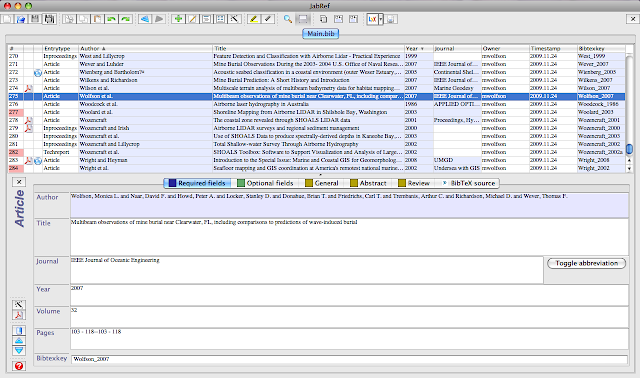
Here is a screen grab showing what JabRef looks like running on my Mac:
If you get stuck feel free to drop me a comment and I'll try to help.
update: I edited the following paragraph to clear up some confusion pointed out in a posted comment. I should also point out that on Zotero's website, there are numerous posts from users requesting relative links, but with absolutely no reply from Zotero. This again makes me think that the way Zotero is written, relative links are not possible. Otherwise, they would have it, wouldn't they?
I love being able to sync my Zotero database between my personal Mac and school PC, but the syncing breaks the file links. If you sync your database to a second computer, it shows the links as still being there, but if you try to click on a file to open it within Zotero you get an error message saying Zotero cannot find it. You can tell Zotero where the file is, but you would have to do this for every file in the database. I am guessing this has something to do with Zotero running as a FireFox plug-in. When you add a PDF from another directory, Zotero copies it into its own internal structure, which is confusing and involves folders with random letter names. This is just not working for me. I want to be able to sync my database between my computers, and have functional links to the associated files.
I just switched today to JabRef and love it. It is free, works on Windows, Linux, and Mac, and let's you use relative links. It is simply a frontend for your BibTex file, but it has some really cool tricks:
1. It can autogenerate bibtex keys based on a format you specify
2. It can automatically link entries to files in any directory you specify based on the bibtex keys.
3. It is all stored in a small, easily transferable, BibTex file
4. It supports online searches so you can find and easily capture references online
5. It supports field-based views, but let's you view and directly edit the BibTex code as well as
4. I am sure there are a ton more, but I just started using it today
There are a couple tricks to switching over, so here is what I did:
1. Export the Zotero library in RIS format (my BibTex format export from Zotero caused issues with JabRef)
2. Import the RIS file into a new database in JabRef and save it
3. The internal PDF links from Zotero were written out to the URL field, meaning there are now a bunch of broken URL links in JabRef. To fix this, I navigated to the location of my new database file via terminal (or Cygwin in Windows) and did the following:
egrep -v "internal-pdf" original.bib > new.bib
This will delete all those pesky broken URLs that think they are internal PDF links, but still keep any legit URL links
4. Open the new.bib with JabRef (you can close out the old database now).
5. Under Options -> Preferences -> External Programs: Set the file and PDF directories to whatever directories you are already using (ex: /Users/mwolfson/Documents/School/Articles). Also check the "Autolink files with names starting with BibTex Key" option
6. Under the BibTex Key generator options, setup your BibTex key to match how you name your PDFs. My PDFs are named: author_year.pdf. So my BibTex Keys were set to [auth]_[year].
7. Select all your entries in your database, then go to Tools -> autogenerate BibTex Keys (let it overwrite old keys if necessary). Now all your entries should have the proper BibTex Key appended to them
8. While still selecting all records, Tools -> Scan Database -> Synchronize File Links (they have a specific PDF link, which works, but does not add the PDF icon to the entries for some reason -- perhaps because it uses a special pdf = {} in the bibtex code instead of file = {} -- so there is no way to know which entries have PDFs and which don't). Allow overwriting and hit OK. Now, if your PDF/file names in the specified directory match any of the BibTex keys, they will be auto-linked to the JabRef entry. Entries with linked PDFs should now show a PDF icon next to it.
update: There is an option under preferences to "show PDF/PS column" which would then, in fact, display the PDF icon if you choose to PDF sync rather than File sync. I have heard PDF/PS sync is being phased out since File sync handles these file types and more though, so I still recommend using File sync instead.
Viola! You should now have a working BibTex database in JabRef with all your articles linked. If you work across multiple computers like me, simply open up this database in JabRef on the new machine, set up your file directories to point to the appropriate files, and you are done. All your PDF links will work because the links themselves are relative! This is especially awesome when working cross-platform between Windows, Linux, and Mac.
Here is a screen grab showing what JabRef looks like running on my Mac:

If you get stuck feel free to drop me a comment and I'll try to help.
Wednesday, April 22, 2009
Zotero 1.5b: Sync multiple computers and more!
New version of Zotero is now available (though still in Beta form). Version 1.5b2 allows you to back up your library for free on Zotero's server, and thus sync your libraries across multiple computers. Another neat feature is that you can add a PDF to your library and ask Zotero to go and find all the reference information for you! It will capture part of the text and search Google Scholar (other databases to be added soon); if it finds a matching entry, it fills out all the metadata for you (author, journal, etc.) So far I have only actually gotten this to work a couple times (even when I pulled the articles directly from Google Scholar), but this is still a beta version after all. I am sure the main dependency for it working is where the data is found; journal webpage versus someone' s CV publication listing, for example. At any rate, when the journal can be found, it is quite a time saver!
Be sure to check out the new version. Below is a screen grab showing my local library and my library stored on Zotero.org.

Be sure to check out the new version. Below is a screen grab showing my local library and my library stored on Zotero.org.

Subscribe to:
Posts (Atom)